Units & settings
Choose the language, the units and the axes you work in, and how the drawing looks. Settings only change how the model is shown and typed: the model itself is always stored in SI units with z pointing down, so a project or link opens the same in any settings.
There are three ways in:
- the Settings tab above the viewer shows them full-size in place of the model, on Language & Locale; the Viewer tab takes you back;
- the units chip at the bottom right of the viewer (
m m² kN kNm MPa) opens them as a dialog on Language & Locale; - More settings under the display options opens the dialog on Viewer settings.
Settings are saved in your browser and survive reloads. Reset settings, below the list of pages, restores the defaults: number format, axes, pan button, the units of your region, and all the viewer settings and display options. Your language is kept. A reset cannot be undone.
Language & Locale
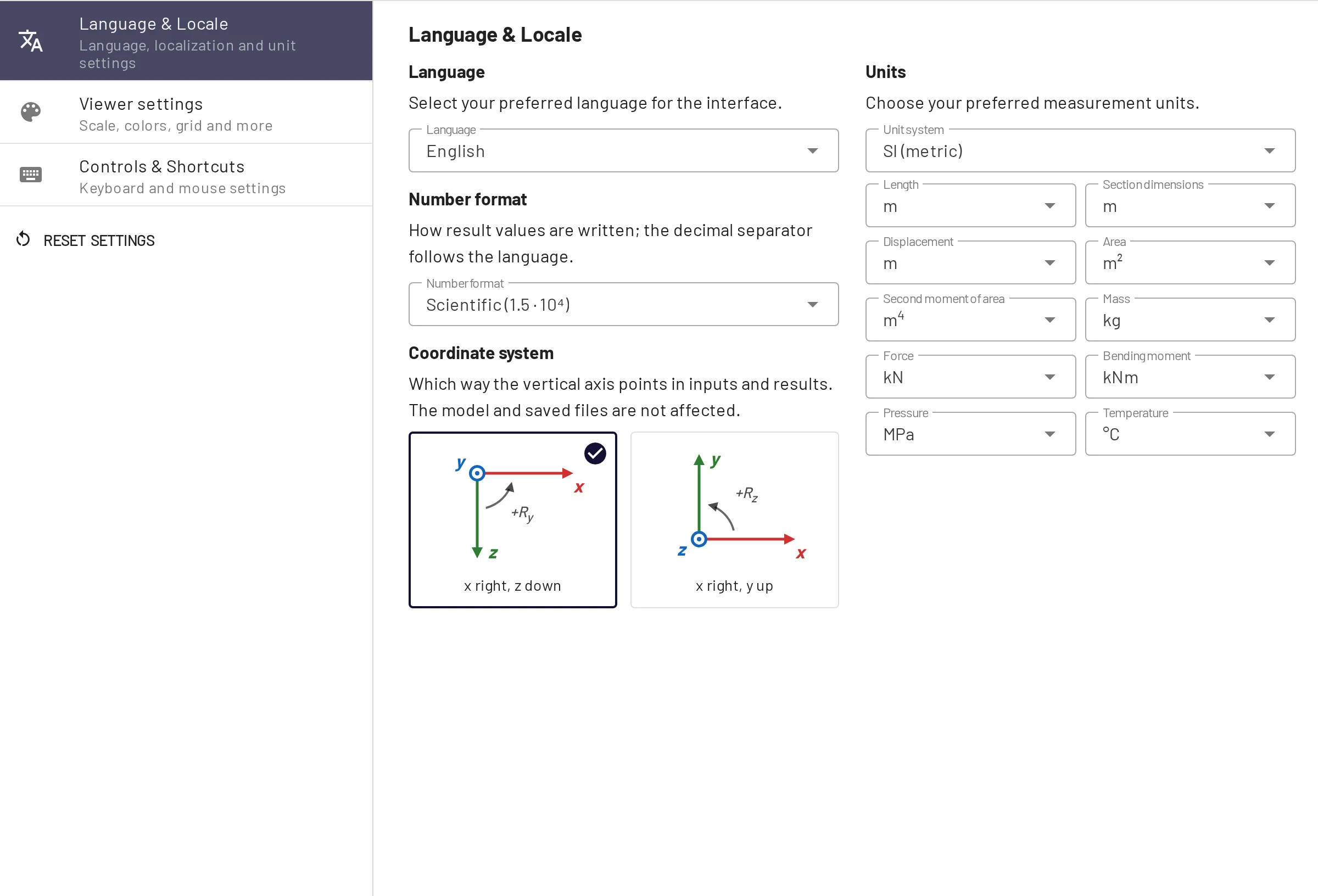
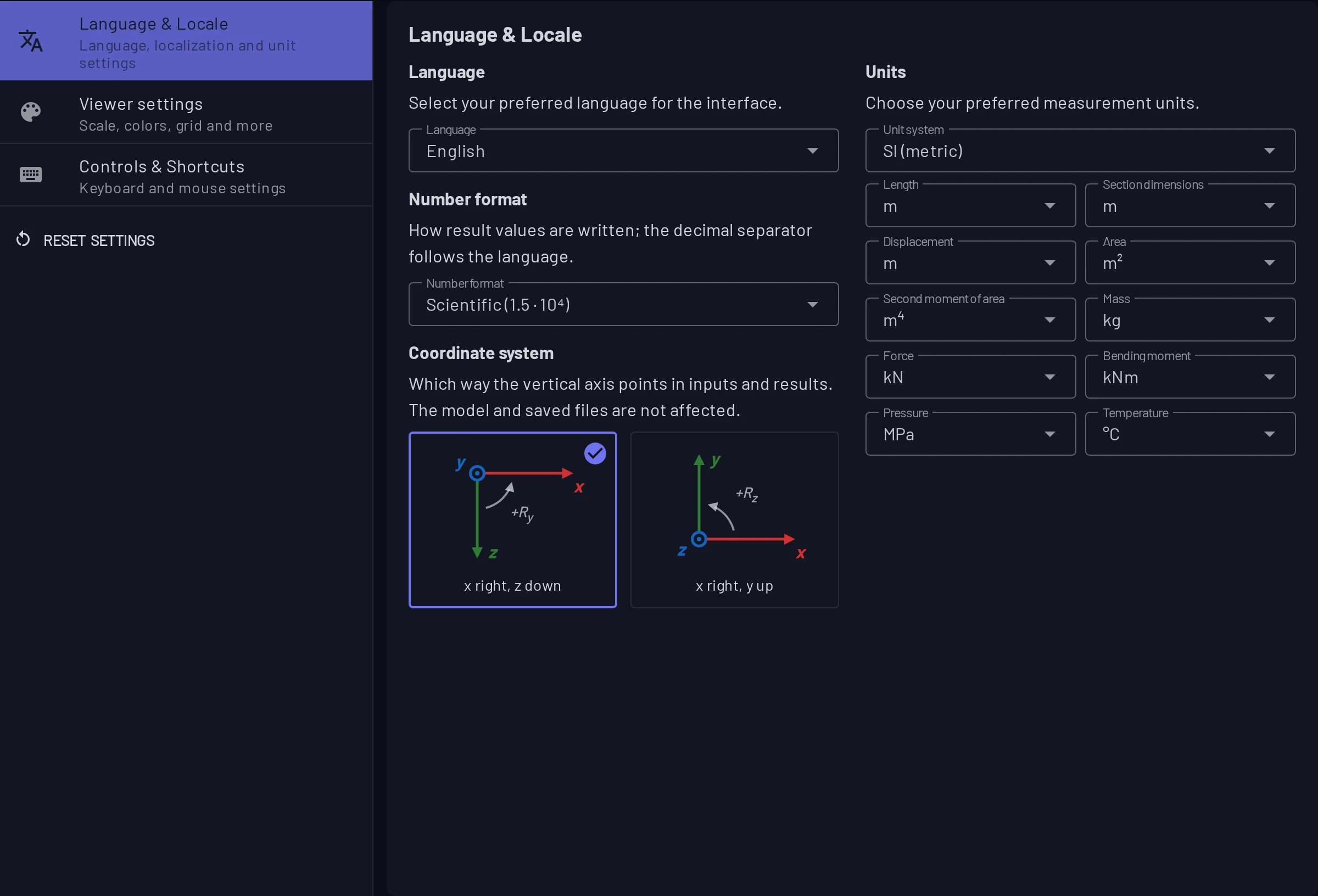
Language. 22 languages; the first time, EduBeam follows your browser. The decimal separator follows the language. A link can choose the language for the reader: add ?lang= with one of en, cs, sk, de, fr, es, pt, pl, hu, ro, el, cn (Chinese), th, uk, ru, tr, hi, vi, it, id, ja, ko.
Number format. How result values are written in the tables and tooltips: Scientific (1.5 · 10⁴, the default), Engineering (15 · 10³) or Automatic. See Number format.
Coordinate system. x right, z down (the default) or x right, y up. With x right, y up, the vertical axis is called y and points up, and moments are about z. Vertical coordinates, forces, displacements, reactions and support angles change sign, and every input, table, tooltip and export uses the new names. The model, the drawing and saved files stay exactly the same. See Y-up axes.
Unit system. SI (metric) or US customary (imperial) sets every unit at once. On a first visit you choose in the welcome dialog. EduBeam suggests US customary only when the browser is set to a US locale and the computer is in a US time zone; everywhere else it suggests SI. Change any single unit afterwards and the system shows as Custom.
Units
Every quantity has its own unit. Inputs (which show it at the end of the field), tables, tooltips and diagram labels all use it, and changing a unit converts what is shown. Nothing in the model changes, so switching back and forth loses nothing.
| Quantity | Choices | SI | US customary |
|---|---|---|---|
| Length (geometry, load positions) | m, cm, mm, ft, in | m | ft |
| Section dimensions | m, cm, mm, ft, in | m | in |
| Displacement (results, prescribed settlements) | m, cm, mm, ft, in | m | in |
| Area | m², cm², mm², ft², in² | m² | in² |
| Second moment of area | m⁴, cm⁴, mm⁴, ft⁴, in⁴ | m⁴ | in⁴ |
| Mass | kg, lb | kg | lb |
| Force | N, kN, MN, kgf, Tonf, lbf, kip | kN | kip |
| Bending moment | Nmm, Nm, kNm, MNm, Tonf·m, lbf·in, lbf·ft, kip·in, kip·ft | kNm | kip·ft |
| Pressure (E, G) | Pa, kPa, MPa, GPa, ksc, psi, ksi, psf, ksf | MPa | ksi |
| Temperature | °C, °F | °C | °F |
A few units follow from the others:
- Line loads are force per length: kN/m in SI, kip/ft in US customary.
- Density is mass per length³: kg/m³ or lb/ft³.
- Thermal expansion follows the temperature: 1/K or 1/°F. Temperature loads are temperature changes, so 10 °C is 18 °F.
- Rotations are always in radians, and support angles in degrees.
Tonf is the metric tonne-force (1000 kgf), not the US short ton. US units use their exact definitions: 1 ft = 0.3048 m, 1 kip = 4448.2216 N. Type feet as decimals, such as 5.5; the rulers and the crosshair read in feet and inches (5′-6″).
Viewer settings
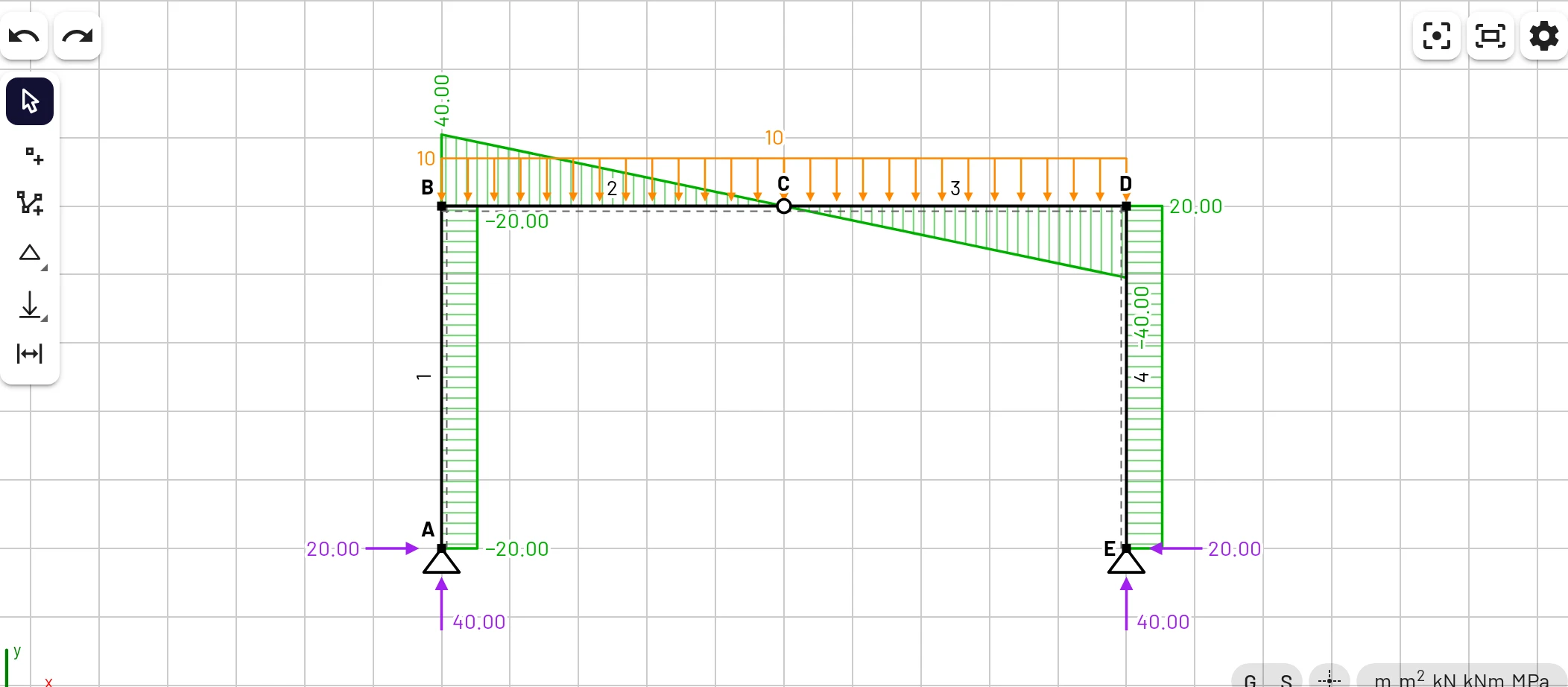
How the drawing looks. The Viewer preview on the right is a small inclined beam that shows every change at once; the buttons under it pick which result it shows, and changing a diagram setting or a colour switches it to that result.
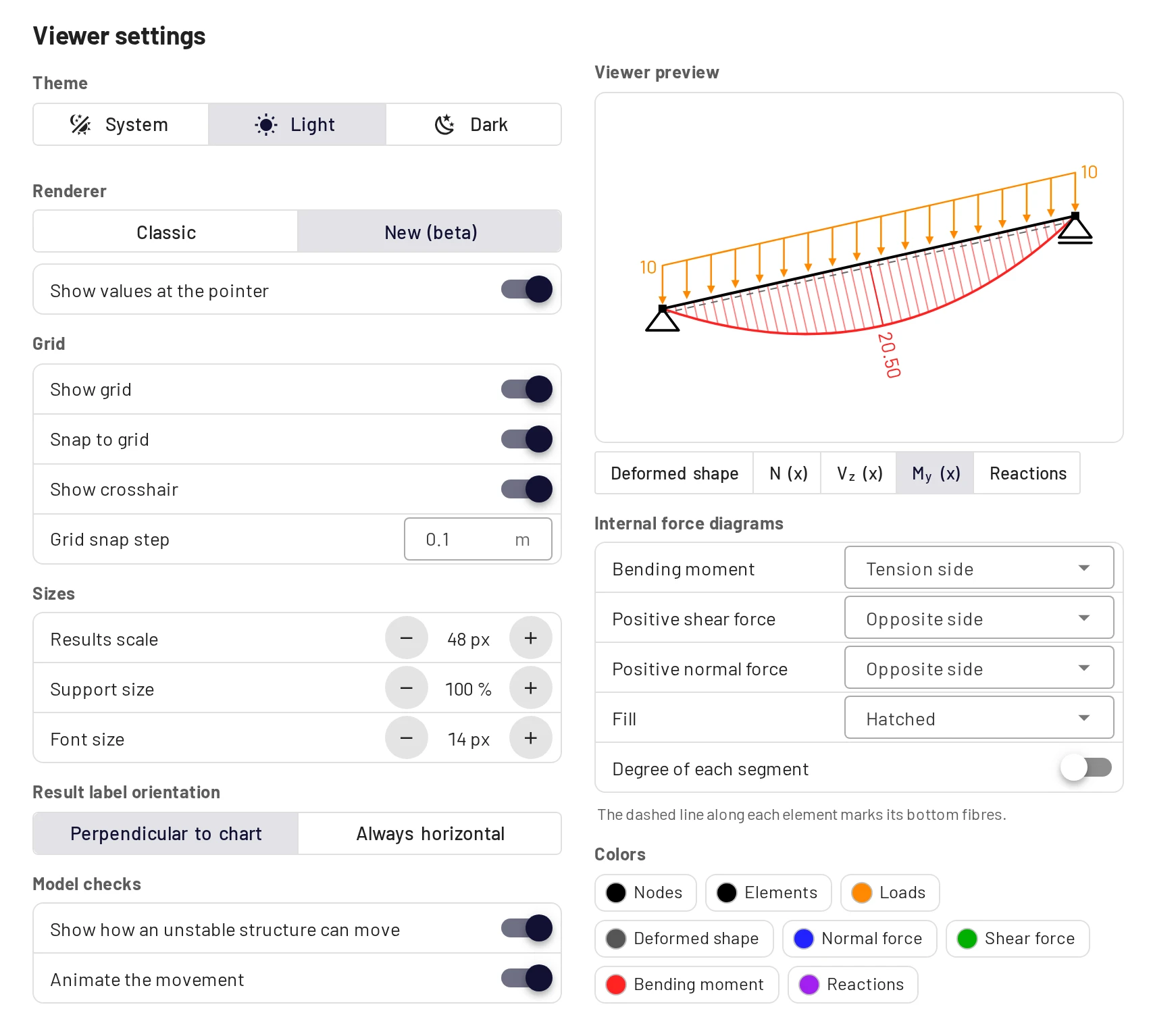
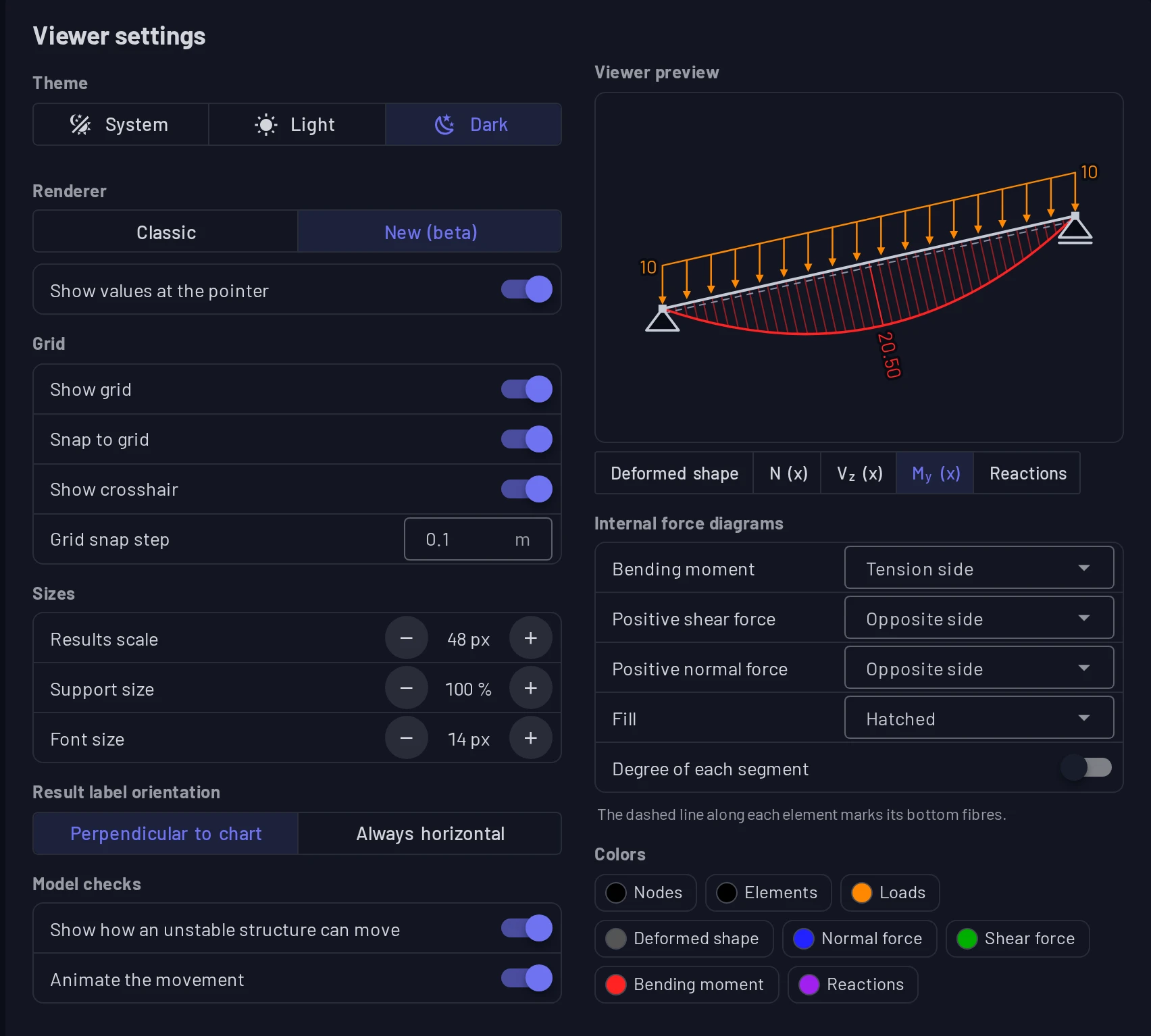
The left column, from the top:
- Grid: Show grid (G) draws the grid and the rulers; Snap to grid (S) lands the nodes you place or drag on it; Show crosshair marks the pointer's position on the rulers, with a mouse. All three are on at first. Grid snap step is 0.1 m, or 0.5 ft in US units. When you switch between metric and US units, a step still at its default moves to the other system's default; a step you set yourself is kept.
- Sizes: Results scale, 8 to 120 px (48 px at first), is how tall the largest ordinate of a diagram, or the largest deflection, is drawn; it is purely visual, as each diagram is scaled to its own largest value. Support size runs from 50 to 150 % (100 %), and Font size from 10 to 20 px (14 px); larger helps on a projector.
- Result label orientation: values written along the ordinate, Perpendicular to chart (the default), or Always horizontal.
- Model checks: Show how an unstable structure can move draws a dashed outline of the mechanism, and Animate the movement swings it back and forth. Both are on at first.
Internal force diagrams
Schools draw diagrams differently, so EduBeam lets you choose. These settings only change the drawing, never the values. The dashed line along each element marks its bottom fibres, the side its local z points to (see Element direction).
| Setting | Choices | Default |
|---|---|---|
| Bending moment | drawn on the Tension side or the Compression side | Tension side |
| Positive shear force | drawn on the Opposite side of the dashed line, or on the Dashed side | Opposite side |
| Positive normal force | Opposite side or Dashed side | Opposite side |
| Fill | Solid, Hatched (lines across the member, as drawn by hand), or None | Solid |
| Degree of each segment | writes the polynomial degree, 0° to 3°, on each segment of a diagram | off |
Results & diagrams explains how to read the signs.
Colors
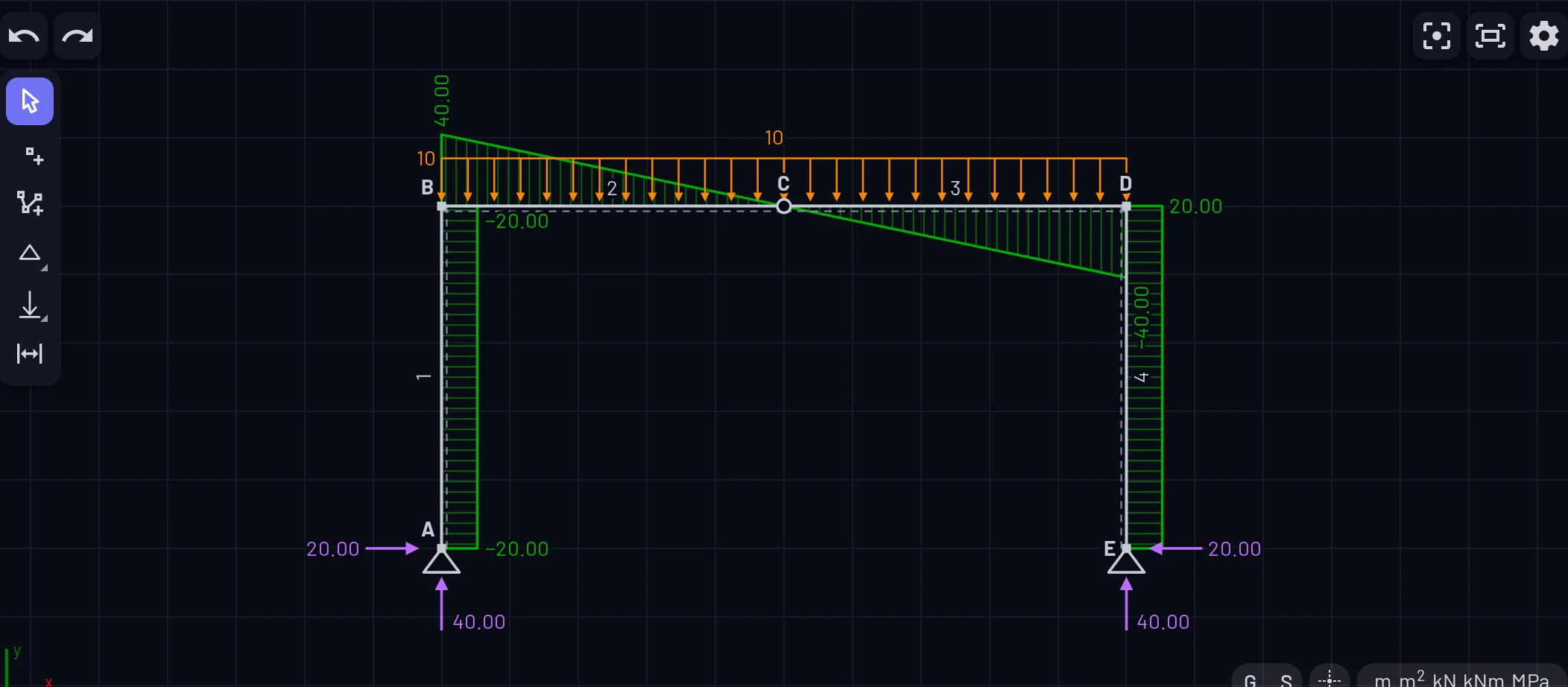
Separate colours for nodes, elements, loads, the deformed shape, normal force, shear force, bending moment and reactions. Click a swatch to pick a colour. The defaults: loads orange, deformed shape grey, N blue, V green, M red, reactions purple, nodes and elements black.
Controls & Shortcuts
Pan using sets which mouse button drags the canvas around: Mouse wheel or right button (the default), Mouse wheel (press the wheel and drag), or Right button. Every shortcut is on the Keyboard, mouse & touch page.
What is stored in your browser
Besides the settings, EduBeam keeps in the browser's local storage:
- the current model, saved after every change, so reloading the tab or reopening the app brings it back;
- Recent structures: the last 10 models you cleared or replaced, ready to restore from the ☰ menu.
Both belong to this browser on this device, and clearing the site's data removes them. To keep a model or move it to another device, use Save project or Share model.